Image to MusicXML

Convert an image of sheet music to MusicXML online.

JPG, PNG, WEBP, or TIFF — including a phone photo of a printed page. StaveWave reads the notation, checks every bar, and exports editable MusicXML.

Optimized for image to MusicXML, JPG to MusicXML, PNG to MusicXML, photo of sheet music to MusicXML workflows with reviewable MusicXML output.

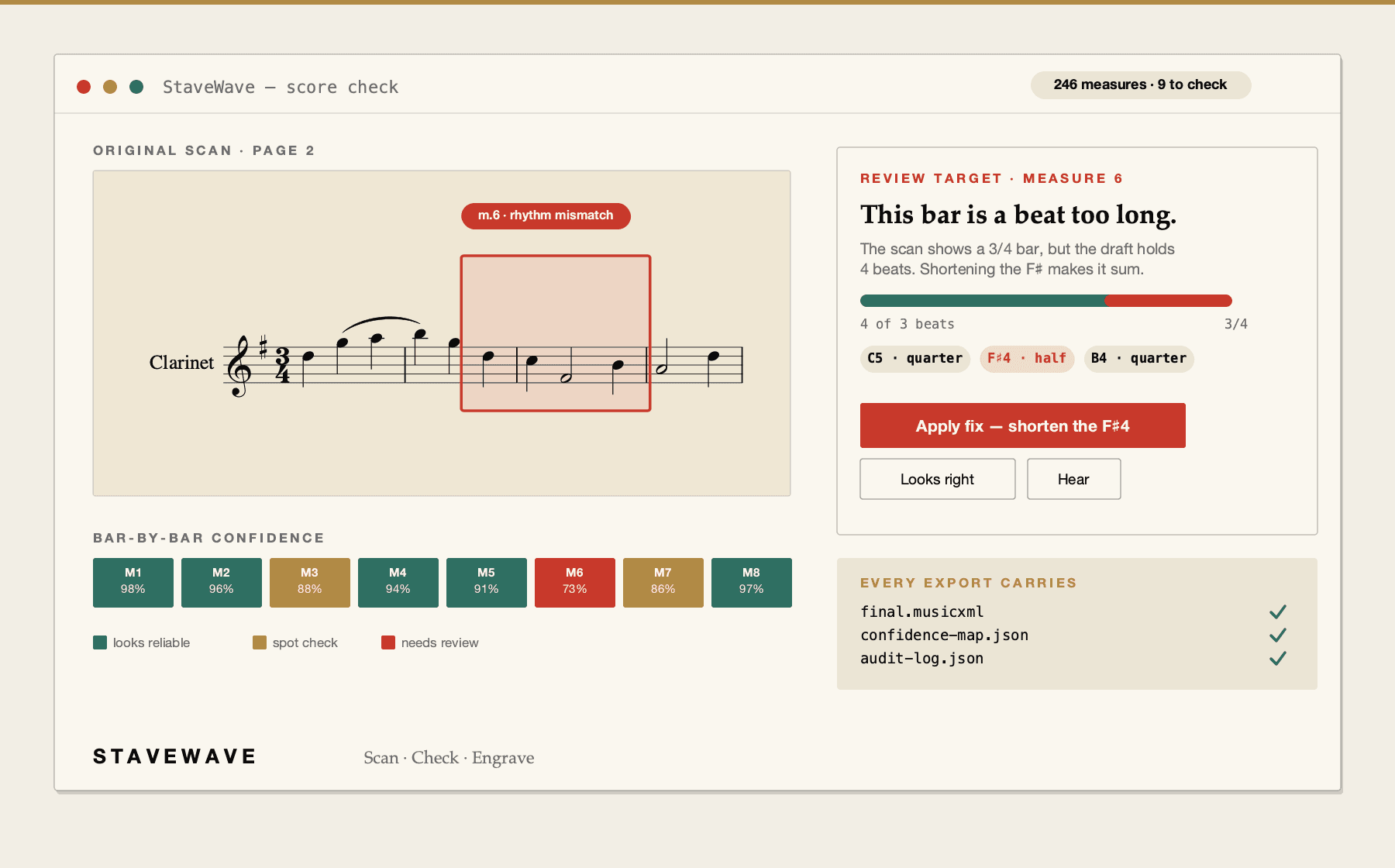
StaveWave converting a photo of a printed score into editable MusicXML.
Upload a score, review quality evidence, and export MusicXML.

Image to MusicXML benefits

JPG, PNG, WEBP, TIFF — and PDF

Upload any of those formats up to 100 MB and 50 pages. StaveWave profiles the image first and prepares only what that source needs before recognition runs.

Phone photos work with care

Even lighting and a flat page are what matter. Shoot straight-on, avoid shadows across the staves, and keep the whole page in frame. Printed notation only — handwriting is not supported.

Every bar is checked against the image

Independent recognition passes read the page, and the score check compares the rendered result with your original image, flagging measures where the readings disagreed.

Processing stack

The recognition and validation layers behind each export.

StaveWave shows the recognition engines, specialist passes, validation checks, and quality gates involved so users can see what checked the score before trusting the MusicXML.

Recognition passes

Independent recognition passes read the score and create MusicXML candidates.

StaveWave compares independent readings of the notation and keeps disagreements visible instead of treating one reading as automatically correct.

Review checks

Review checks compare the original page with the rendered result.

Visual, corpus, and notation checks inspect weak spots, compare the original scan against the rendered transcription, and flag suspicious measures or suggested fixes.

Specialist checks

Specialist checks look for notation mistakes that matter in editing.

Focused passes review pitch, rhythm, text, structure, articulation, and style so the output needs less cleanup in Sibelius, Dorico, MuseScore, Finale, or another editor.

Quality gates

Release gates decide whether the export is ready or blocked.

Validation, consensus, visual comparison, audio checks, plausibility scoring, and audit evidence must run. If a required component fails, the job reports a blocking error.

Workflow

How StaveWave analyzes the upload.

01

Photograph or scan the page

Keep the page flat and the lighting even. 300 DPI or higher is best for scans of printed music.

02

Upload and walk the score check

Submit the image, then review flagged measures against your original page.

03

Export MusicXML

Get standard MusicXML, compressed MXL, and MIDI for Sibelius, Dorico, MuseScore, or Finale.

Questions

What to know before uploading.

These answers match the structured data search engines receive for this page.

Do I need to install any software?

No. StaveWave is an online service that runs in the browser, so it works the same on Mac, Windows, Linux, iPad, and Chromebook. There is nothing to install.

Which image formats are supported?

JPG, PNG, WEBP, and TIFF, plus PDF, up to 100 MB and 50 pages per job.

Will a photo from my phone work?

Yes, if the lighting is even and the page is flat. Shoot straight-on and avoid shadows. The score check flags any measures where image quality affected recognition.

Can it read handwritten music?

No. StaveWave targets printed notation. Handwriting is not supported.

What do I get at the end?

Standard MusicXML and compressed MXL for your notation app, plus MIDI. The verified score can also be engraved online into a print-ready PDF.

Ready to convert

JPG, PNG, WEBP, or TIFF — including a phone photo of a printed page. StaveWave reads the notation, checks every bar, and exports editable MusicXML.

Convert a scoreSee the score check live