MusicXML MuseScore can import
StaveWave exports standard MusicXML. Once the conversion finishes, open MuseScore, choose File › Open, and select the downloaded .xml or .mxl file. MuseScore reads it as a full score.
MusicXML for MuseScore
Upload a PDF or scanned score, convert it to MusicXML, and import directly into MuseScore. Review recognition confidence and validation, and validation warnings before you trust the result.
Optimized for MusicXML for MuseScore, MuseScore MusicXML import, convert sheet music to MuseScore, PDF to MuseScore workflows with reviewable MusicXML output.

StaveWave exports standard MusicXML. Once the conversion finishes, open MuseScore, choose File › Open, and select the downloaded .xml or .mxl file. MuseScore reads it as a full score.
Notes, rests, key and time signatures, clef changes, tempo markings, dynamics, slurs, ties, and most articulations come through the MusicXML import reliably. Lyrics attach to the correct noteheads when the source recognition is clean.
Complex grace notes, custom text, non-standard tuplets, and some ornaments may need manual adjustment after import. The StaveWave review report flags the measures most likely to need attention before you start editing in MuseScore.
Processing stack
StaveWave shows the recognition engines, specialist passes, validation checks, and quality gates involved so users can see what checked the score before trusting the MusicXML.
OMR engines
Audiveris, homr, and oemer each try the notation independently. StaveWave compares their outputs and keeps disagreements visible instead of treating one reading as automatically correct.
Review checks
Visual, corpus, and notation checks inspect weak spots, compare source evidence against rendered MusicXML, and flag suspicious measures or repair candidates.
Specialist checks
Focused passes review pitch, rhythm, text, structure, articulation, and style so the output is easier to clean up in Sibelius, Dorico, MuseScore, Finale, or another editor.
Quality gates
Validation, consensus, visual comparison, audio checks, plausibility scoring, and audit evidence must run. If a required component fails, the job reports a blocking error.
Workflow
Submit a PDF or image file up to 50 MB and 20 pages. StaveWave checks the source before recognition begins.
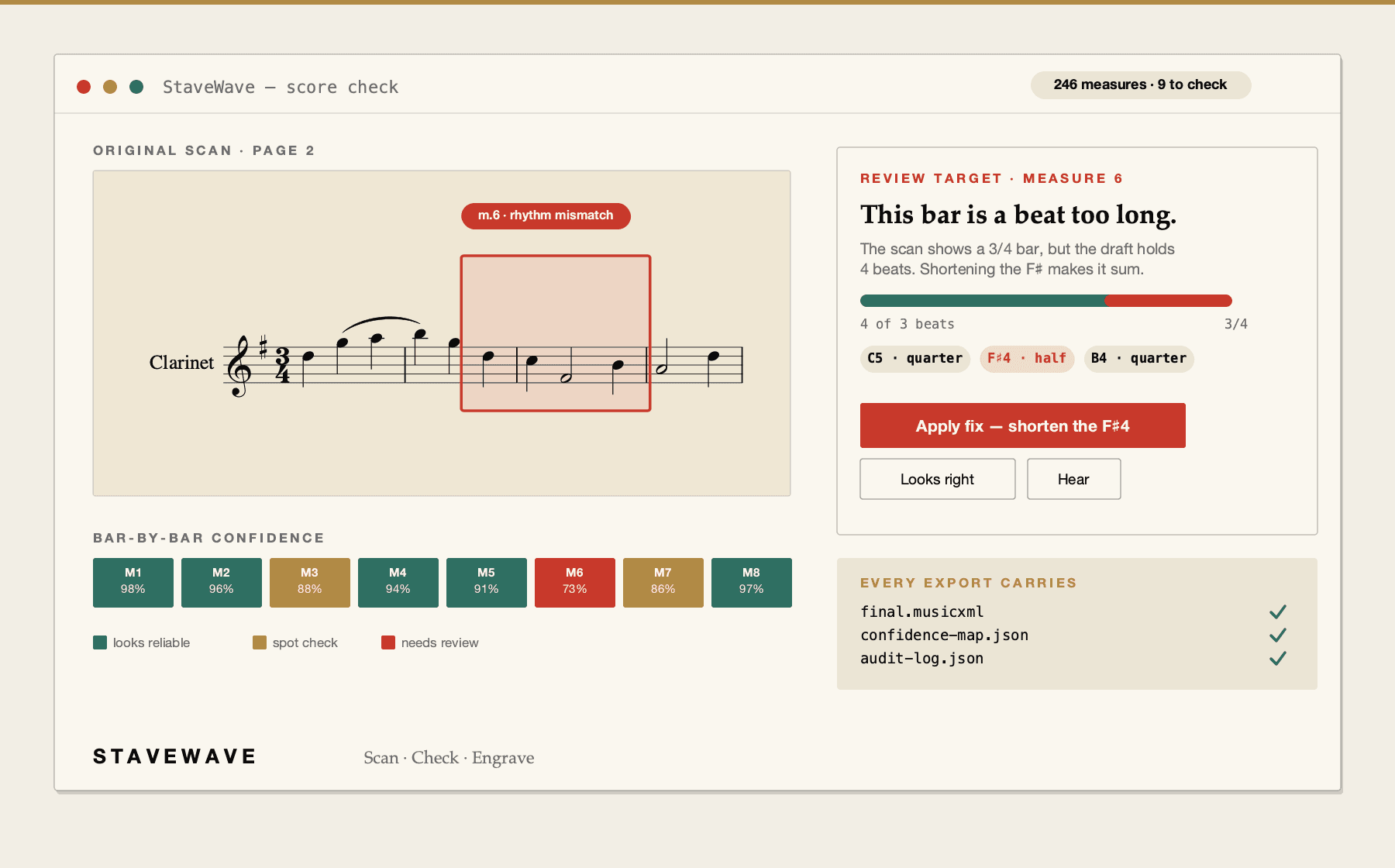
Check which measures passed the recognition and validation pipeline cleanly, and which carry warnings.
Download the MusicXML file and open it in MuseScore via File › Open. Review the import and fix any flagged measures.
Questions
These answers match the structured data search engines receive for this page.
MusicXML import has been supported in MuseScore since version 2. MuseScore 3 and MuseScore 4 both handle .xml and .mxl files well. Use the most recent version for the best import fidelity, especially for complex scores with lyrics, chord symbols, or multiple voices.
Lyrics, slurs, ties, dynamics, and common articulations such as staccato, accent, and tenuto transfer through MusicXML import in most cases. The StaveWave recognition pipeline includes a specialist pass for text and articulation, and the review report flags measures where those elements were uncertain during recognition.
Check the StaveWave confidence report first—measures marked as uncertain or flagged by validation are the most likely sources of import issues. Common problems include beaming, tuplet grouping, and ornament notation. These are typically faster to fix manually in MuseScore than to re-scan, but the report gives you a targeted list of where to look.
Yes. The output is standard MusicXML and works with any notation application that supports the format, including Sibelius, Dorico, Finale, and Notion. StaveWave is not locked to MuseScore—import it wherever your workflow lives.
Both. StaveWave processes single-instrument parts and full multi-staff orchestral scores. Dense scores take longer to process and may produce more validation warnings, but the review report identifies exactly which measures need review before you import into MuseScore.
Ready to convert